모든 마우스 클릭, 스크롤 및 화면 접촉 (touch) 이벤트는 MotionEvent에 속하고, 이러한 이벤트들은 위젯을 위한 on_touch_down이나 on_touch_up과 같은 이벤트를 생성한다.
위젯 이벤트 (widget events) - Button & on_touch_down 메서드
위젯은 2가지 타입의 이벤트를 가질 수 있다.
- 위젯 프라퍼티 이벤트 (property event)
- 위젯 정의 이벤트 (widget-defined event)
Button & on_touch_down 메서드
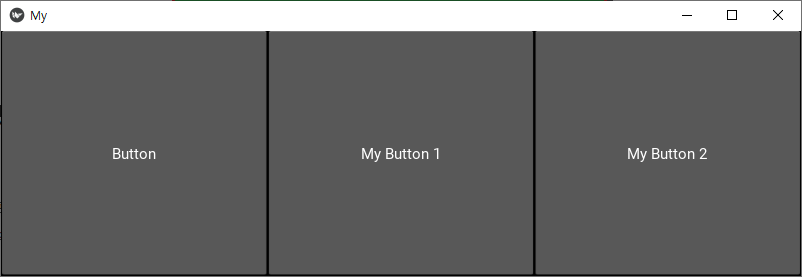
아래 이미지와 같이 버튼 3개를 가로로 배치하기 위해 BoxLayout 및 Button 클래스를 사용한다.
import kivy
kivy.require('2.0.0')

from kivy.app import App
from kivy.uix.boxlayout import BoxLayout
from kivy.uix.button import Button

class MyButton(Button):
    def __init__(self, **kwargs):
        super(MyButton, self).__init__(**kwargs)

class RootWidget(BoxLayout):
    def __init__(self, **kwargs):
        super(RootWidget, self).__init__(**kwargs)
        self.add_widget(Button(text='Button'))
        self.add_widget(MyButton(text='My Button 1'))
        self.add_widget(MyButton(text='My Button 2'))

class MyApp(App):
    def build(self):
        return RootWidget()

if __name__ == '__main__':
    MyApp().run()
왼쪽 첫번째 버튼 생성을 위해 kivy의 Button 클래스를 사용하고, 중간 및 오른쪽 버튼은 Button 클래스를 상속하는 MyButton으로 생성한다.
이제 My Button 1 또는 My Button 2가 눌렸을 때 버튼 이름 text를 출력하는 코드를 MyButton 클래스 내에 추가한다.
MyButton 클래스에서 화면 접촉(touch)이 발생했을 때 호출되는 메서드 on_touch_down을 override (재정의) 한다.
class MyButton(Button):
    def __init__(self, **kwargs):
        super(MyButton, self).__init__(**kwargs)

    # 새로 추가하는 코드
    def on_touch_down(self, touch):
        print(self.text)
        super(MyButton, self).on_touch_down(touch)
        if self.collide_point(*touch.pos):
            return True
윈도우 운영체제 환경에서 위의 코드를 실행한다면, 마우스 왼쪽 버튼을 이용해 화면 접촉 이벤트를 발생시킬 수 있다.
화면 왼쪽부터 차례대로 버튼을 누르면, 다음의 문자열이 개발환경 창(파이참)에 출력된다.

왼쪽 버튼 Button을 누르면, 가운데 및 오른쪽 버튼인 My Button 1과 My Button 2에 대한 on_touch_down 메서드가 호출되어 "My Button 2" 및 "My Button 1"이 출력된다.
가운데 버튼 My Button 1을 누르면, My Button 2 및 My Button 1에 대한 on_touch_down 메서드가 호출되어 "My Button 2" 및 "My Button 1"이 출력된다.
오른쪽 버튼 My Button 2를 누르면, My Button 2에 대한 on_touch_down 메서드가 호출되어 "My Button 2" 문자열 만이 출력된다.
여기서 이해할 수 있는 것은
1) 화면 접촉 이벤트가 발생했을 때 on_touch_down 메서드는 RootWidget 클래스 내에서 add_widget 메서드로 추가한 버튼의 역순으로 호출된다는 것
My Button 2 -> My Button 2 -> Button
2) 버튼을 누르고 있으면 버튼 배경색이 파란색으로 표시되고, 버튼을 놓으면 버튼 배경색이 원래대로 돌아가도록 하기 위해 MyButton 클래스 내에서 Button 클래스의 on_touch_down 메서드를 호출한다는 것
super(MyButton, self).on_touch_down(touch)
3) 화면 접촉이 어떤 버튼에서 이루어진 것은 collide_point 메서드를 이용해 확인할 수 있다는 것과 collide_point 메서드는 x, y 값을 입력받기에 튜플 타입인 touch.pos 변수에 대하여 별표를 붙인다는 것
if self.collide_point(*touch.pos):
# collide_point(x, y)
4) 버튼 My Button 2를 눌렀을 때 "My Button 2" 문자열 만이 출력되는 것으로 on_touch_down 메서드 내에서 True를 반환함으로써 화면 접촉 이벤트를 다른 버튼에 전달하지 않게 할 수 있다는 것
return True
'코딩 > 파이썬 kivy' 카테고리의 다른 글
| kivy 스터디 013. Kivy Input Management - on_touch_down() (0) | 2021.08.07 |
|---|---|
| kivy 스터디 012. kivy 프라퍼티 이벤트 (property event) - ListProperty 이벤트 (0) | 2021.07.26 |
| kivy 스터디 010. 클럭 이벤트 3 (clock events) - create_trigger() (0) | 2021.07.21 |
| kivy 스터디 010. 클럭 이벤트 2 (clock events) - schedule_interval() (0) | 2021.07.20 |
| kivy 스터디 009. 클럭 이벤트 (clock events) 1 - schedule_once() (0) | 2021.07.18 |


